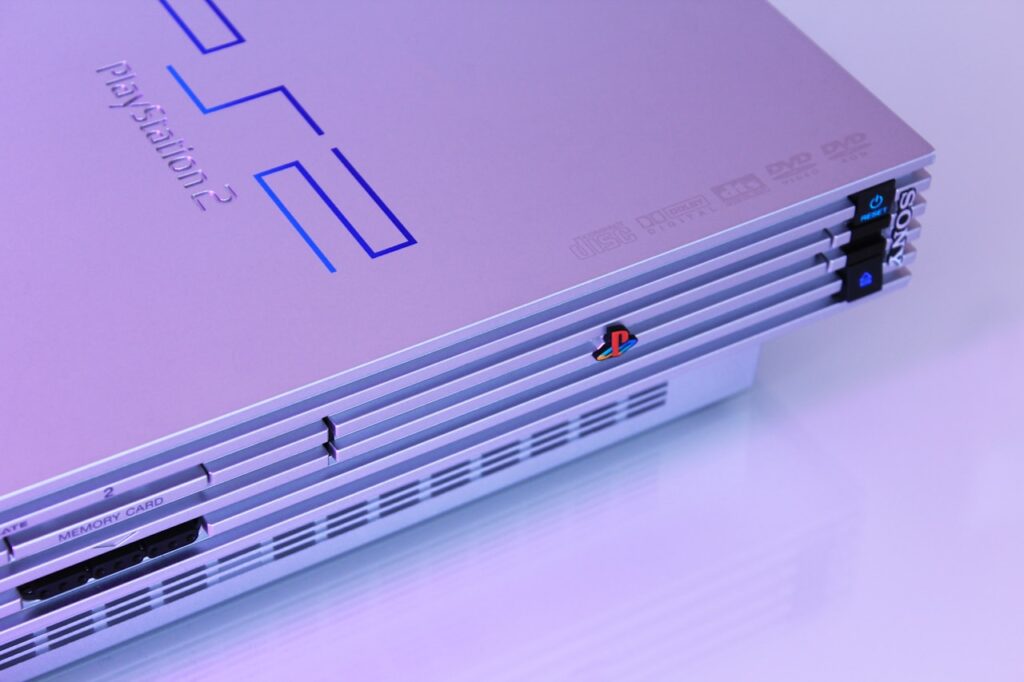
Download All Region Official File for PCX2!
Here you find all region file needed to run PlayStation 2. We are providing you with a step-by-step Guide of how to install and run PS2 BIOS smoothlly.
What is PS2 BIOS? ( Another definition)
The PS2 BIOS (Basic Input Output System) is the essential startup software embedded in the PlayStation 2 console. In modern terms, it works like the firmware bridge between the PS2 hardware and the games or emulators. Without it, an emulator like PCSX2 cannot load or run PlayStation 2 games, because the BIOS provides the original console’s boot instructions, region settings, and system environment.
Download safe and secure PS2 BIOS Files of all regions from here

China (NTSC-C)



Easy Guide to Download PS2 BIOS Files & Fix Common Errors (Step-by-Step)
Choose the BIOS file that matches your PS2 console’s region (USA = NTSC-U, Europe = PAL, Japan = NTSC-J). Check the model number on your console or your game discs for confirmation.
Check the File Extension After Download
- If it ends with .zip, .rar, or .7z → ✅ Extraction is required.
- If it ends with .bin, .rom, or a folder of files (like
scph10000.bin,scph39004.bin) → ❌ No extraction needed, it’s already usable.
Open PCSX2 Emulator and Add the BIOS
- Launch PCSX2 → Open the emulator (first-time setup wizard may appear).
- Go to BIOS Settings → Click Config → BIOS/Plugin Selector → BIOS tab.
- Select BIOS Folder & File → Browse to your
biosfolder, select your region’s BIOS, and click OK/Finish.
Configure and Save Settings
- Open Config → BIOS/Plugin Selector.
- Apply your settings and click OK to save the configuration.
Restart the Emulator
- Close PCSX2 and reopen it to make sure the BIOS is properly loaded.
Load Your Game
- Go to CDVD → ISO Selector → Browse, choose your PS2 game ISO file, and click System → Boot ISO (fast) to start playing.
⚡ Common Issues & Fixes
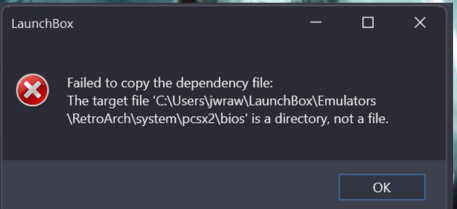
❌ BIOS Not Found
- Make sure all BIOS files are in
DocumentsPCSX2bios(not in a subfolder). - Re-run setup wizard and point manually to that folder.
❌ Black Screen on Boot
- Wrong BIOS region → Try a different region BIOS (PAL vs NTSC).
- Use Boot ISO (full) instead of “fast” if game needs PS2 logo sequence.
❌ Game Runs Too Slow
- Lower internal resolution to Native.
- Enable Speedhacks.
- Switch renderer from Direct3D11 to Vulkan/OpenGL.
❌ Game Crashes / Freezes
- Some games require specific Game Fixes:
- Go to Config → Emulation Settings → Game Fixes and enable “Automatic Game Fixes.”
- Try switching BIOS region if it’s a region-lock issue.
❌ Game Runs Too Slow
- Lower internal resolution to Native.
- Enable Speedhacks.
- Switch renderer from Direct3D11 to Vulkan/OpenGL.
❌ Game Crashes / Freezes
- Some games require specific Game Fixes:
- Go to Config → Emulation Settings → Game Fixes and enable “Automatic Game Fixes.”
- Try switching BIOS region if it’s a region-lock issue.